Angular Course
Playwright is a free and open-source web automation testing framework created by Microsoft. Its commonly used for testing Angular apps.
Key Features of Playwright for Angular
-
End-to-End Testing: Playwright is designed to interact with web applications in a way that mimics how real users interact with them (e.g., clicking buttons, typing into forms, navigating pages). This is perfect for testing Angular apps end-to-end, ensuring everything works as expected in a real browser environment.
-
Cross-Browser Testing: Playwright supports multiple browsers including Chromium, Firefox, and WebKit (Safari), allowing you to test your Angular application across various browser types. This is particularly important for cross-browser compatibility testing.
-
Headless Mode: Playwright supports headless execution, meaning you can run tests without launching a visible browser window. This speeds up the testing process, especially in Continuous Integration (CI) environments.
-
Fast and Reliable: Playwright is built to be fast and robust, handling dynamic content (like what you'd typically see in Angular applications) more efficiently than some older testing tools.
-
Page Interaction: Playwright allows interaction with Angular components, including:
- Clicking elements (buttons, links, etc.).
- Filling out forms and submitting them.
- Handling dynamic content that loads asynchronously (important for Angular’s single-page application (SPA) behavior).
- Waiting for elements to load, interactable, or visible before proceeding with actions.
-
Browser Contexts & Multiple Pages: Playwright supports multiple browser contexts, which allows you to simulate different sessions within the same test (for instance, testing how two users interact with your Angular app simultaneously).
Common Use Cases for Angular
- UI/UX Testing: Check how the application looks and behaves in different browsers, screen sizes, and device simulations.
- Functional Testing: Automate testing of specific Angular routes, forms, or components.
- Regression Testing: Ensure new changes to the app don't break existing functionality by running tests whenever updates are made.
Integration with CI/CD:
Playwright can be integrated into CI/CD pipelines, running tests automatically on every commit or pull request. This ensures that your Angular app works as expected across different browsers and environments at all times.
Comparing Playwright with Other Tools for Angular
While Angular-specific tools like Protractor and Cypress are also used for testing Angular apps, Playwright is growing in popularity due to its speed, ease of use, and cross-browser capabilities.
Here's how Playwright compares:
- Protractor: Angular-specific, but has been deprecated in favor of other testing frameworks.
- Cypress: Excellent for testing single-page apps like Angular, but it has some limitations with cross-browser testing and handling certain types of dynamic content.
Playwright is a versatile and modern tool that can be used to automate testing for Angular applications. It provides cross-browser support, fast execution, and a rich set of features for interacting with complex web applications, making it a solid choice for end-to-end testing of Angular apps.
Setting Up Playwright with Angular
Let's create the e2e folder in our Angular project directory, set up a package.json file, and install Playwright.
Step 1: Create the e2e Folder and package.json File
- Create the
e2efolder in our Angular project directory if it doesn't already exist:
mkdir e2e
cd e2e
- Create the
package.jsonfile inside thee2efolder:
{
  "name": "e2e",
  "version": "1.0.0",
  "main": "index.js",
  "directories": {
    "test": "tests"
  },
  "scripts": {
    "test": "echo \"Error: no test specified\" && exit 1",
    "e2e": "npx playwright test"
  },
  "keywords": [],
  "author": "",
  "license": "ISC",
  "description": "",
  "devDependencies": {
    "@playwright/test": "^1.49.1",
    "playwright": "^1.49.1"
  }
}
- Install the dependencies by running the following command:
npm install
Step 2: Set Up Playwright Test Configuration
Create a Playwright config file (playwright.config.ts) inside the e2e folder:
import { defineConfig, devices } from '@playwright/test';

export default defineConfig({
  projects: [
    {
      name: 'praveen-emp-mgmt-ui',
      use: {
        browserName: 'chromium',
        headless: true,
        viewport: { width: 1280, height: 720 },
      },
    },
  ],
});
Step 3: Create Test Scripts
Create a test file (app.spec.ts) inside the tests folder:
import { test, expect } from '@playwright/test';

test('should load home page and check title', async ({ page }) => {
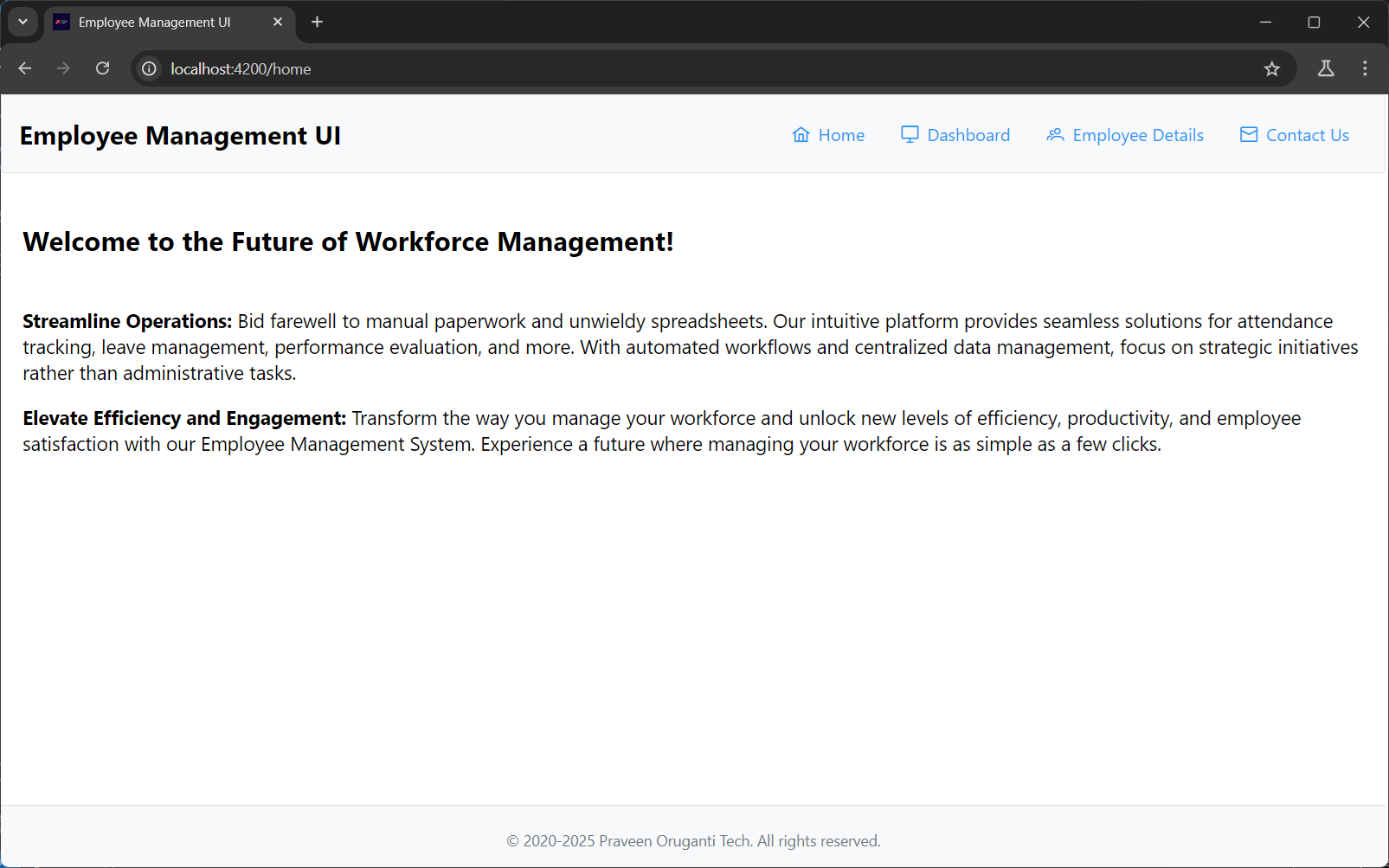
  await page.goto('http://localhost:4200');

  // Check if the page contains the title 'Employee Management UI'
  await expect(page).toHaveTitle(/Employee Management UI/);

  // Check if a specific element is visible on the page
  await expect(page.locator('text=Employee Management UI')).toBeVisible();
});
Step 4: Run the Tests
Run the Playwright tests using the Playwright CLI:
npm run e2e
Playwright will launch the required browser (Chromium by default) and execute the tests you created.
I see the output in the console as follows:
PS D:\praveenoruganti\gitworkspace\angular\praveen-emp-mgmt-ui\e2e> npm run e2e

> e2e@1.0.0 e2e
> npx playwright test


Running 1 test using 1 worker

  ✓  1 [praveen-emp-mgmt-ui] › tests\app.spec.ts:3:5 › should load home page and check title (1.6s)

  1 passed (4.0s)
PS D:\praveenoruganti\gitworkspace\angular\praveen-emp-mgmt-ui\e2e>
To run tests in a different browser, you can configure the playwright.config.ts file or specify the browser like this:
npx playwright test --project=firefox
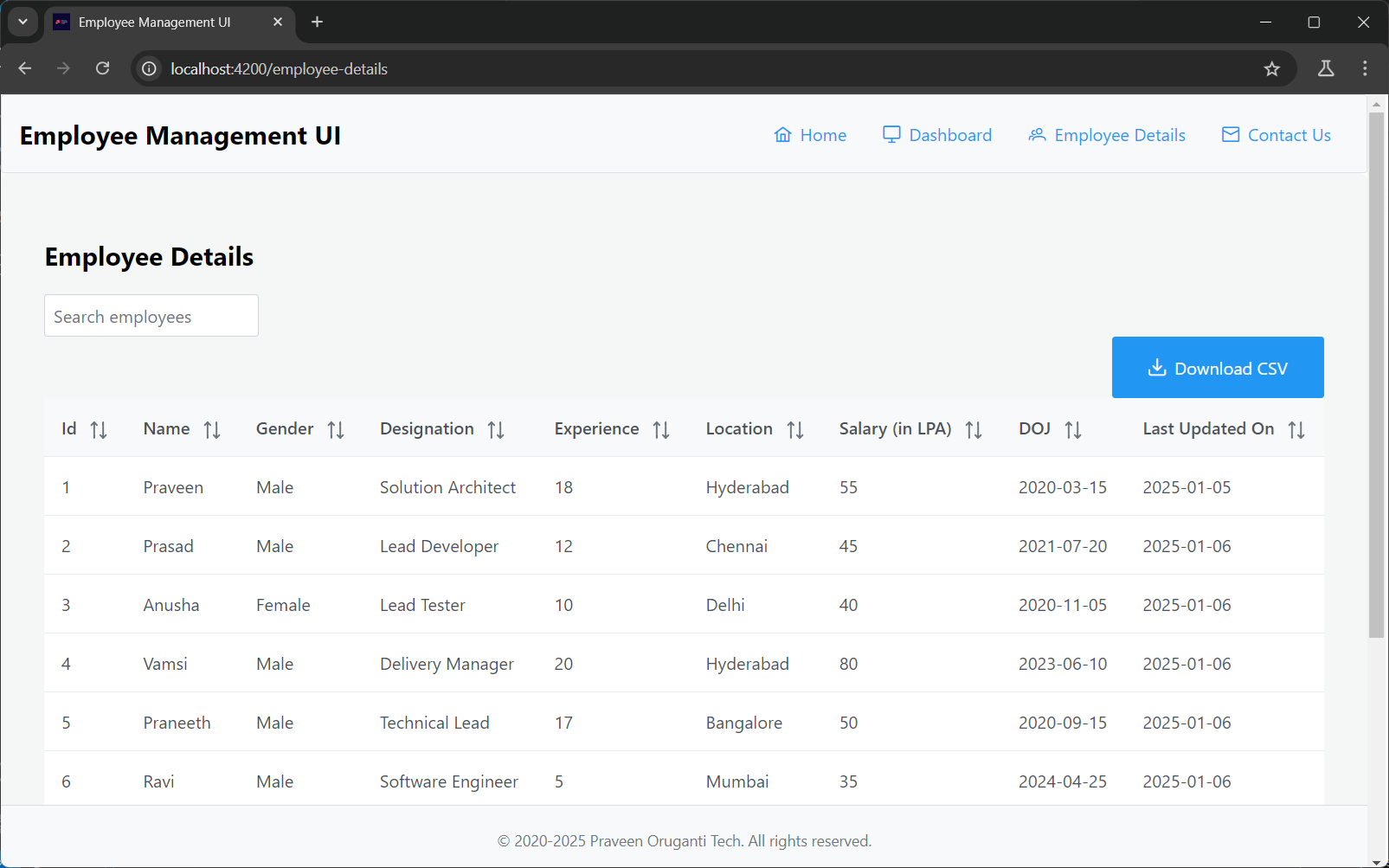
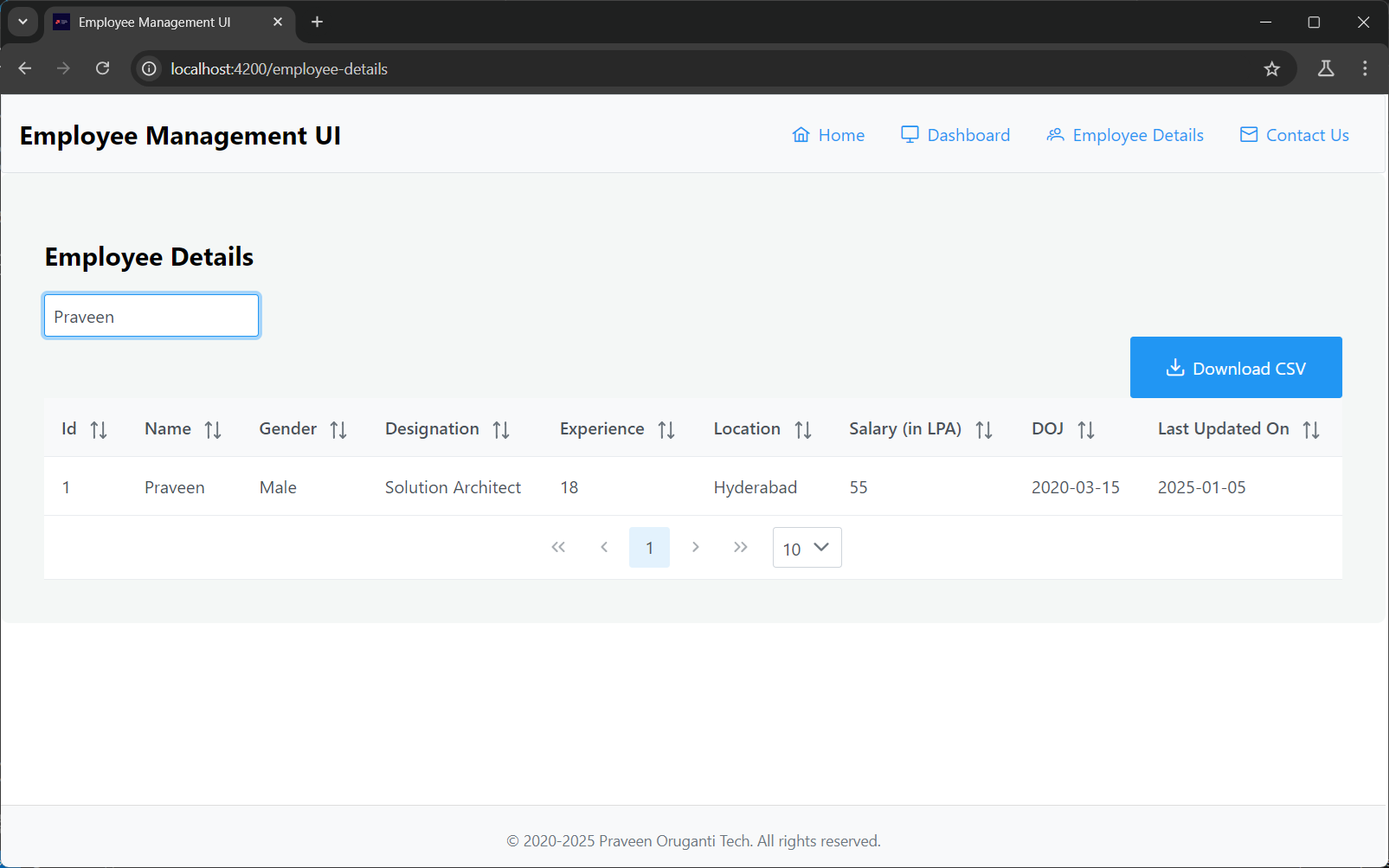
Let's create another test case for the employee-details component, where we need to search for "Praveen" in the search bar and verify whether a row with the designation "Solution Architect" appears in the table.
import { test, expect } from '@playwright/test';

test('should filter employees by search text and check designation', async ({ page }) => {
    // Go to the page where EmployeeDetailsComponent is rendered
    await page.goto('http://localhost:4200/employee-details');

    // Type 'Praveen' into the search input field and trigger the search
    const searchInput = await page.locator('input[placeholder="Search employees"]');
    await searchInput.fill('Praveen');
    await searchInput.press('Enter');

    // Wait for the table to update after filtering
    const tableRow = await page.locator('p-table .p-datatable-tbody tr');

    // Check if a row with the designation 'Solution Architect' is displayed
    const designationColumn = await tableRow.locator('td:nth-child(4)');
    const designationText = await designationColumn.textContent();

    // Assert that the designation is 'Solution Architect'
    expect(designationText).toBe('Solution Architect');
});
Now, run the Playwright test. The output in the console is as follows:
PS D:\praveenoruganti\gitworkspace\angular\praveen-emp-mgmt-ui\e2e> npm run e2e

> e2e@1.0.0 e2e
> npx playwright test


Running 2 tests using 2 workers

  ✓  1 [praveen-emp-mgmt-ui] › tests\app.spec.ts:3:5 › should load home page and check title (1.5s)
  ✓  2 [praveen-emp-mgmt-ui] › tests\employee-details.spec.ts:3:5 › should filter employees by search text and check designation (1.7s)

  2 passed (3.2s)
If you don't want to use the headless configuration, update the playwright.config.ts file as shown below. This configuration is recommended only for local development. In CI environments, it's recommended to use headless mode for better performance.
import { defineConfig } from '@playwright/test';

export default defineConfig({
  projects: [
    {
      name: 'praveen-emp-mgmt-ui',
      use: {
        browserName: 'chromium',
        headless: false,
        viewport: { width: 1280, height: 720 },
        launchOptions: {
          slowMo: 2000,
        },
      },
    },
  ],
  workers: 1,
});
Now, run the Playwright test. The output in the console will be as follows:
PS D:\praveenoruganti\gitworkspace\angular\praveen-emp-mgmt-ui\e2e> npm run e2e

> e2e@1.0.0 e2e
> npx playwright test


Running 2 tests using 1 worker

  ✓  1 [praveen-emp-mgmt-ui] › tests\app.spec.ts:3:5 › should load home page and check title (2.7s)
  ✓  2 [praveen-emp-mgmt-ui] › tests\employee-details.spec.ts:3:5 › should filter employees by search text and check designation (6.6s)

  2 passed (10.8s)
Playwright will open the browser and execute the test cases one by one.
app.spec.ts
employee-details.spec.ts