Docker Course
What is a Docker Image or Container Image?
- A Docker image is a read-only template that contains set of instructions for creating a container that can run on Docker platform.
- It provides a convenient way to package up applications and preconfigured server environments, which you can use for your own private use or share publicly with other Docker users.
Pulling a Docker Image of MySQL from Docker Hub
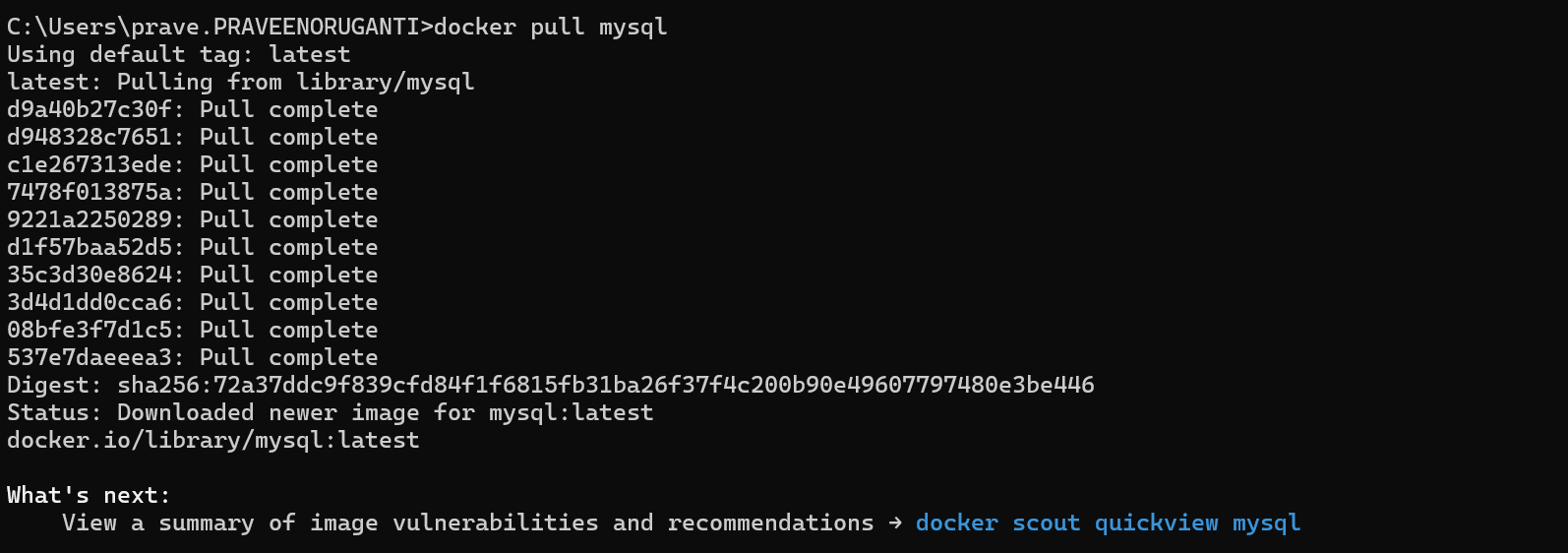
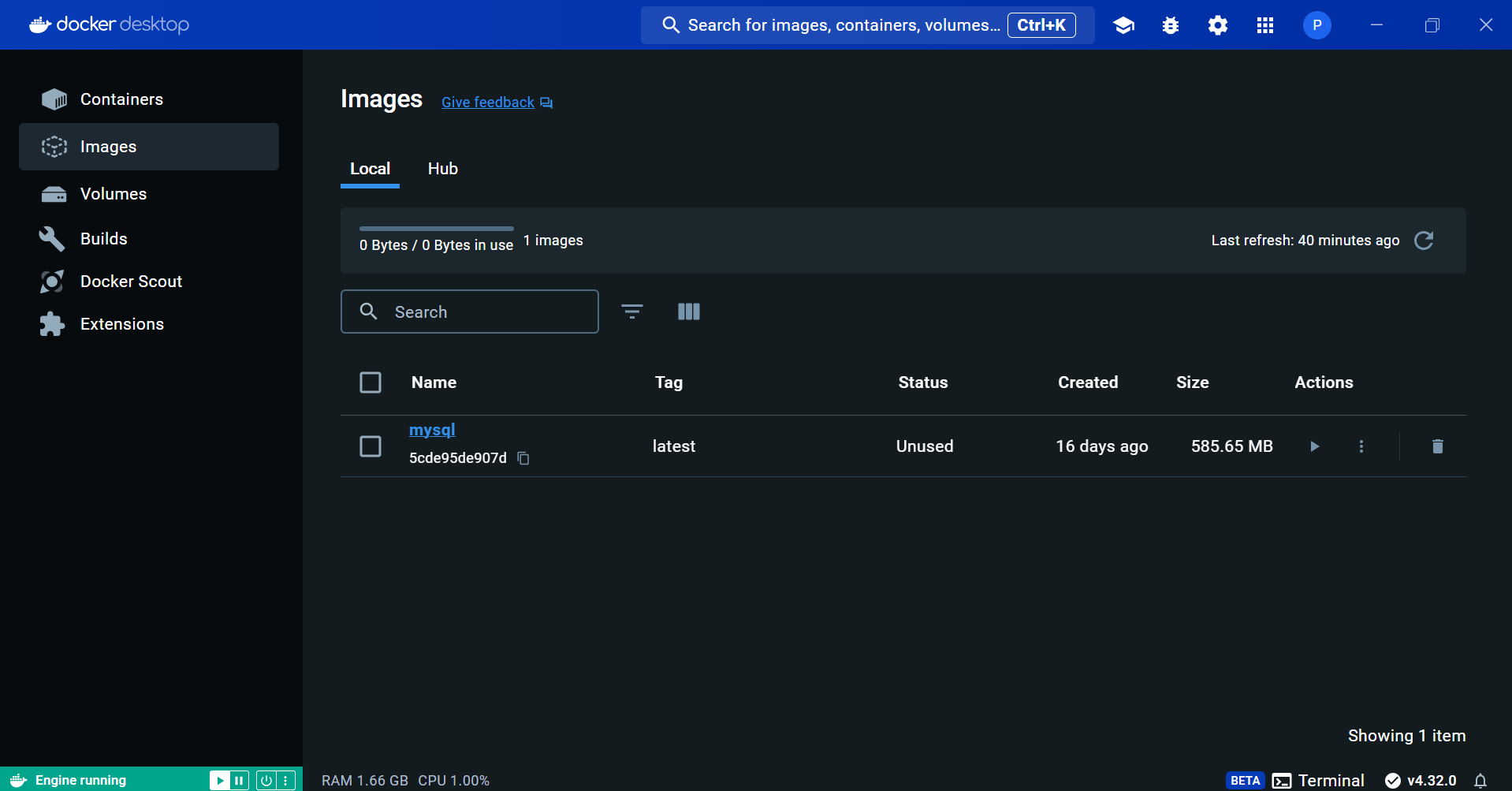
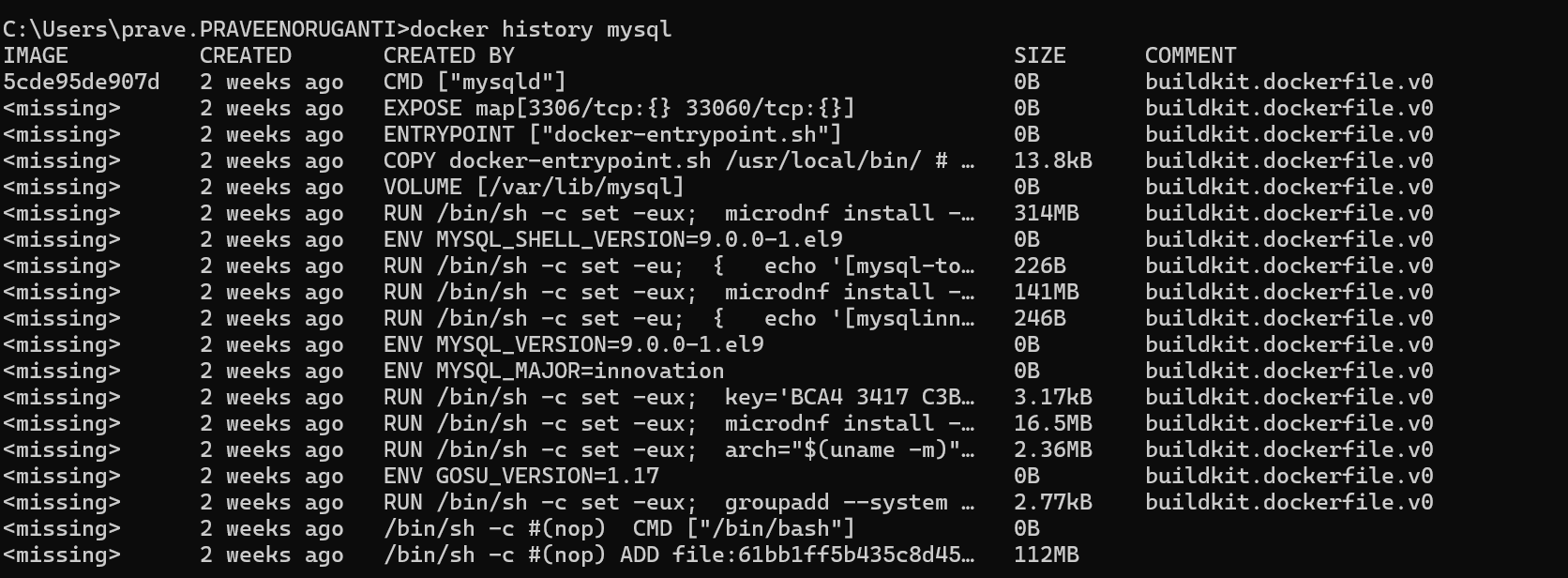
Docker images are made up of multiple read-only layers stacked on top of each other to form a complete image. Each layer represents a specific change to the file system inside the container, such as adding or modifying a file. Once a layer is created, it becomes immutable and can't be changed.
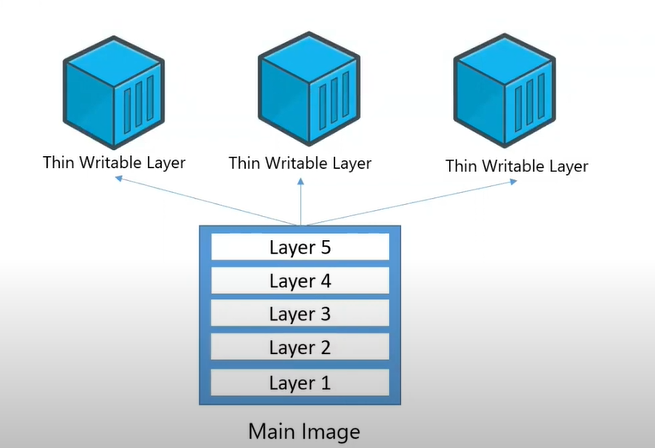
When the container is stopped, the writable layer remains, and if the container is removed, the writable layer is deleted. This is why we say containers are stateless.
Creating a Docker Image
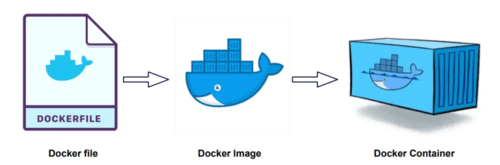
What is a Dockerfile?
- Dockerfile contains set of instructions to build docker image.
- In Dockerfile we will use DSL (Domain Specific Language).
- Docker Engine will read Dockerfile instructions from top to bottom to process.
- In Dockerfile we will use below keywords
- FROM
It represents base image to create our docker image.
Syntax:
FROM java:1.8
FROM python:1.2
FROM mysql:8.5
FROM tomcat:9.5
- MAINTAINER
It is used to specify docker file author information.
Syntax:
MAINTAINER Praveen <https://www.linkedin.com/in/praveenoruganti>
- COPY
It is used to copy the files from source to destination while creating docker image.
Syntax:
COPY <SRC> <DESTINATION>
For example, COPY --from=build /app/target/task-management-service-1.0.jar ./task-management-service-1.0.jar
- ADD
It is used to copy the files from source to destination while creating docker image.
Syntax:
ADD  <SRC>  <DESTINATION>
ADD  <HTTP-URL>  <DESTINATION>
For example, ADD <url> ./task-management-service-1.0.jar
What is the difference between COPY and ADD command?
COPY: It can copy from one path to another path with in the same machine.
ADD: It can copy from one path to another path & it supprts URL also as source.
- RUN
RUN instructions will execute while creating docker image.
Syntax:
RUN yum install git
RUN yum install maven
RUN git clone <repo-url>
RUN cd <repo-name>
RUN mvn clean package
Note: We can write multiple RUN instructions, docker engine will process from top to bottom.
- CMD
CMD instructions will execute while creating docker container. Using CMD command we can run our application in container.
CMD sudo start tomcat
CMD java -jar <jar-file>
Note: We can write multiple CMD instructions but docker engine will process only last CMD instruction.
What is the difference between RUN and CMD ?
RUN instructions will execute while creating docker image.
CMD instructions will execute while creating docker container.
We can write multiple RUN instructions, docker engine will process from top to bottom.
We can write multiple CMD instructions but docker engine will process only last CMD instruction.
Note: There is no use of writing multiple CMD instructions.
- ENTRYPOINT
It is used to execute instructions while creating container.
Syntax:
ENTRYPOINT [ "echo" , "Container Created Successfully" ]
ENTRYPOINT ["java", "-jar", "task-management-service-1.0.jar"]
What is the difference between CMD and ENTRYPOINT?
CMD instructions we can override while creating container.
ENTRYPOINT instructions we can't override.
- ENV
ENV is used to set Environment Variables.
For example, ENV java /etc/softwares/jdk.
- ARG
By using ARG we can take dynamic values from CLI. It is used to remove hard coded values in Dockerfile.
For example,
ARG branch

RUN git clone -b $branch <repo-url>

$ docker build -t <imagename> --build-arg branch=master .
- WORKDIR
It is used to specify working directory for image and container.
Syntax:
WORKDIR /app/usr/
- EXPOSE
It is used to specify on which port number our docker container wil run.
For example, EXPOSE 8080.
- VOLUME
It is used to specify docker volume storage location. Volumes are used for storage purpose.
- USER
It is used to specify username for creating image / container.
For example, USER dockeruser.
- LABEL
It is used to add METADATA to docker objects in key-value format.
For example, LABEL name="task_management_image"
Sample Dockerfile For Spring Boot App
# Use a base image with OpenJDK and Maven installed
FROM maven:3.8.1-openjdk-17 AS build

# Set the working directory
WORKDIR /app

# Copy the Maven project descriptor
COPY pom.xml .

# Download dependencies
RUN mvn -B dependency:go-offline

# Copy the project source
COPY src ./src

# Build the application
RUN mvn -B package -DskipTests

# Use a smaller base image for Spring Boot app
FROM openjdk:17

# Set the working directory
WORKDIR /app

# Copy the JAR file from the build stage to the new image
COPY --from=build /app/target/praveen-birthday-info-service-1.0.jar ./praveen-birthday-info-service-1.0.jar

# Expose the port
EXPOSE 8080

# Command to run the application
CMD ["java", "-jar", "praveen-birthday-info-service-1.0.jar"]
Sample Docker File For React JS App
FROM node::latest
WORKDIR /app
COPY package.json ./
RUN npm install
COPY . .
CMD["npm", "start"]
Install Git in Amazon Linux
$ sudo yum install git
Install Maven in Amazon Linux
$ sudo yum install maven
Clone the Repository
$ git clone https://github.com/orugantipraveen/praveen-birthday-info-service
Go to the praveen-birthday-info-service directory
$ cd praveen-birthday-info-service
Maven Clean
$ mvn clean package
$ ls -l target
Build the Docker Image: Run docker build command to build the image from the Dockerfile:
docker build -t praveen-birthday-info-service .
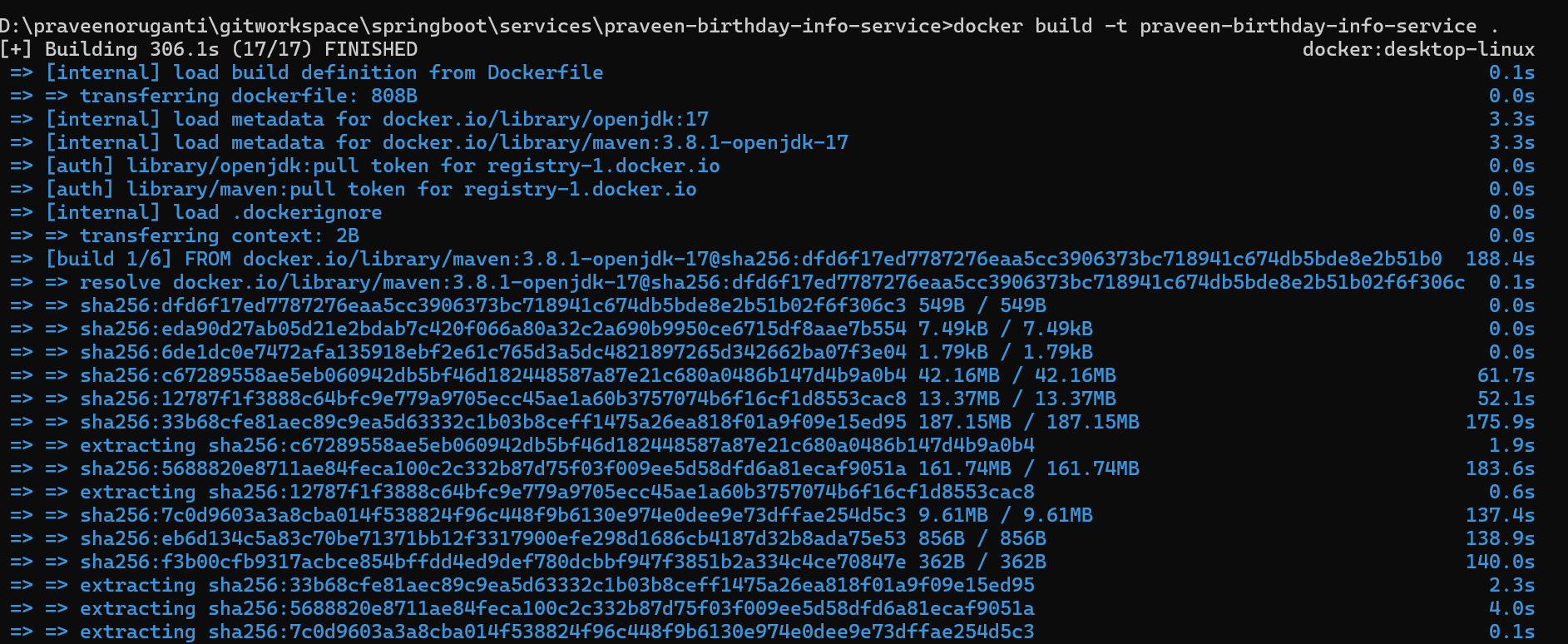
Tag the Image: Tag the image with your Docker Hub username and repository name:
docker tag praveen-birthday-info-service praveenoruganti/praveen-birthday-info-service

Push the Image to Docker Hub: Push the tagged image to Docker Hub:
docker push praveenoruganti/praveen-birthday-info-service
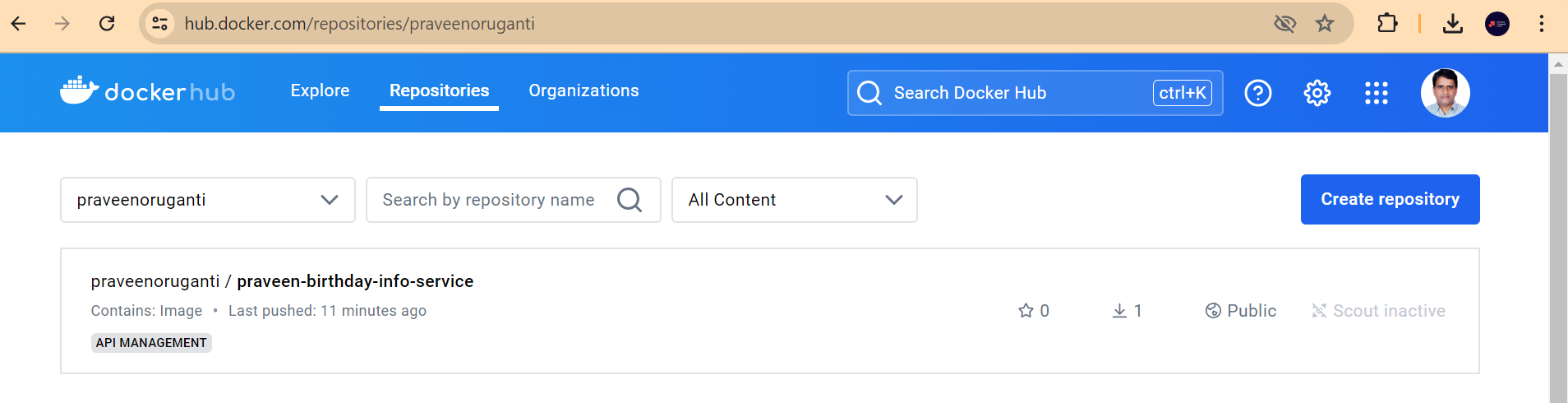
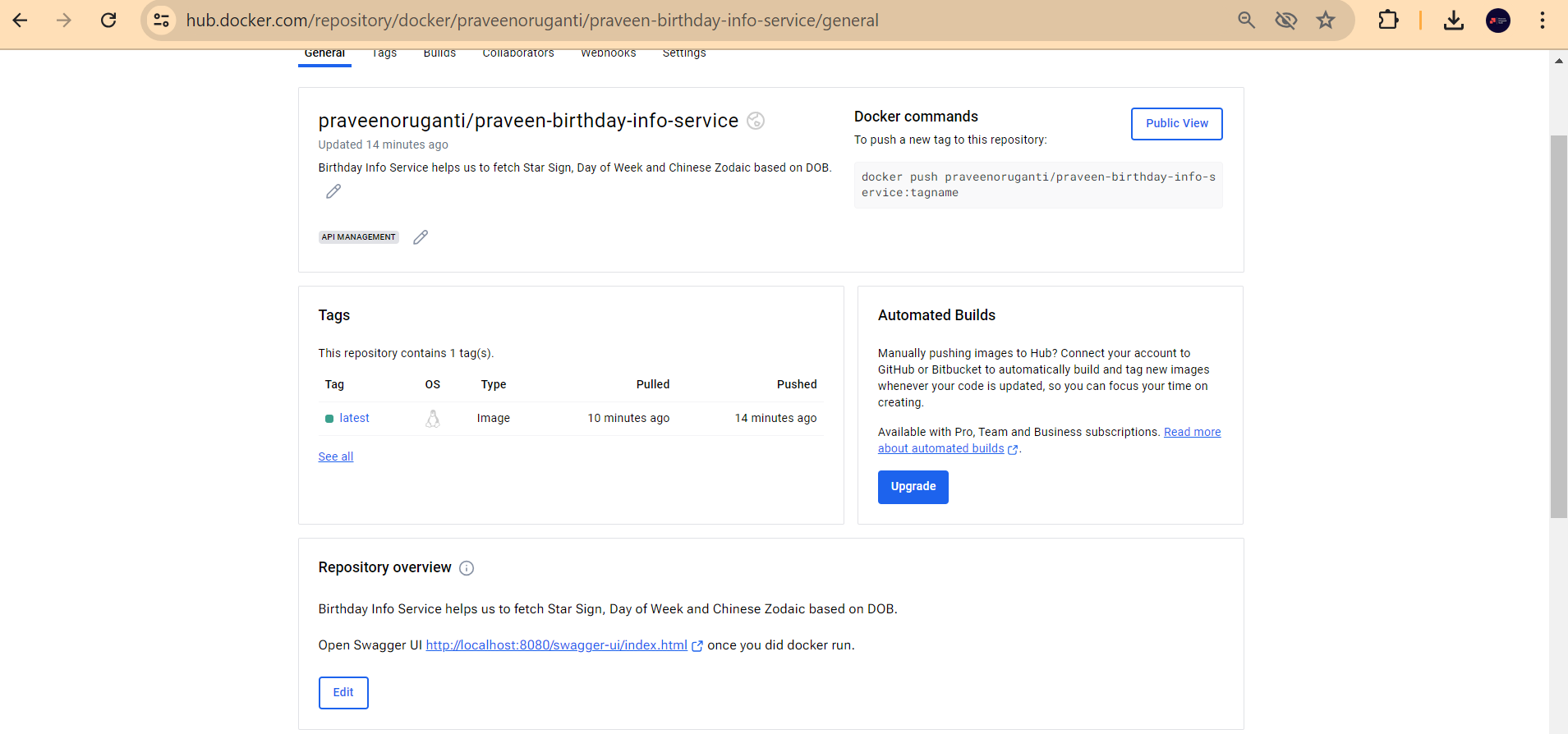
Now lets see whether this repository is getting listed as public in https://hub.docker.com.
Best Practices for Dockerfile
- Use official images as base images: They are well-maintained and secure.
- Minimize the number of layers: Each command in the Dockerfile creates a new layer. Combine commands where possible.
- Use a .dockerignore file: Exclude unnecessary files and directories to reduce the image size.
- Avoid installing unnecessary packages: Only install what is required for your application to run.
- Leverage multi-stage builds: This helps in keeping the final image small and efficient.