Spring Boot Course
How to Add Spring Security to a Spring Boot Application?
- Add Spring Security Dependency in pom.xml
<dependency>
  <groupId>org.springframework.boot</groupId>
  <artifactId>spring-boot-starter-security</artifactId>
</dependency>
This automatically includes the required dependencies and enables basic security features in your application.
- Default Behavior of Spring Security
After adding the above dependency, Spring Security is automatically enabled in your application. By default, Spring Security uses filters to handle authentication and authorization.
What Does Spring Security Do by Default?
- Requires authentication for all endpoints.
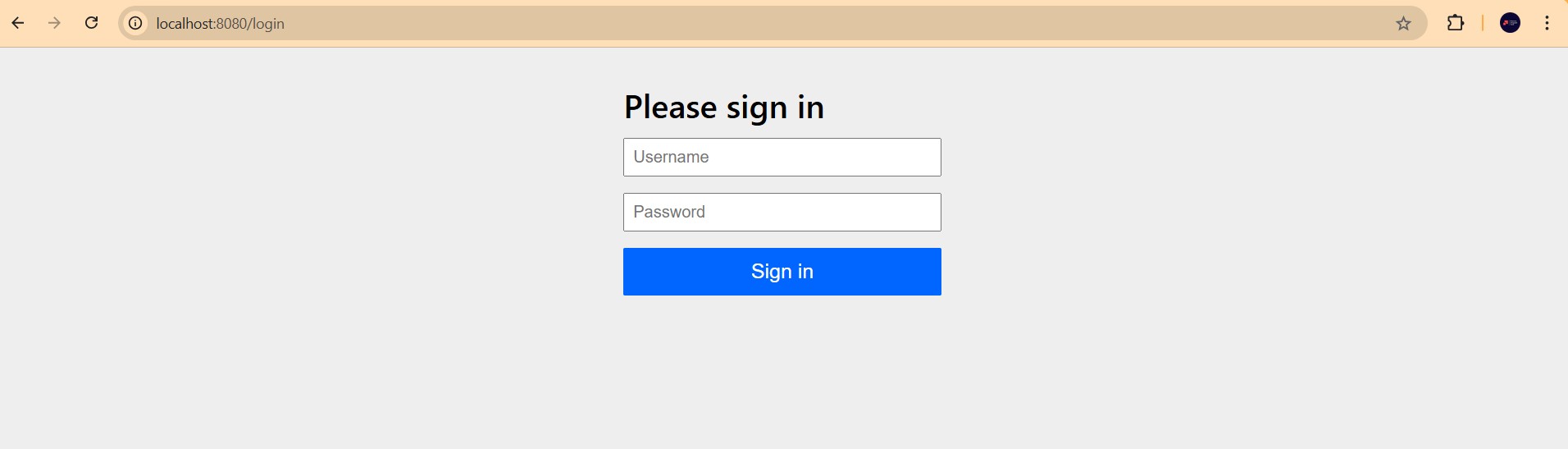
- Displays a login form when an unauthenticated user tries to access a protected resource.
- Handles login errors (incorrect username/password).
- Generates a default username and password upon application startup for easy access.
Let's test this by navigating to a protected endpoint, such as: http://localhost:8080/api/v1/employees.
Once you open this URL, the following login page will appear:
- Default Username and Password
Since we haven't configured a user, Spring Security will automatically create a default username and password. The default username is user, and a randomly generated password will be displayed in your application logs when the Spring Boot application starts up.
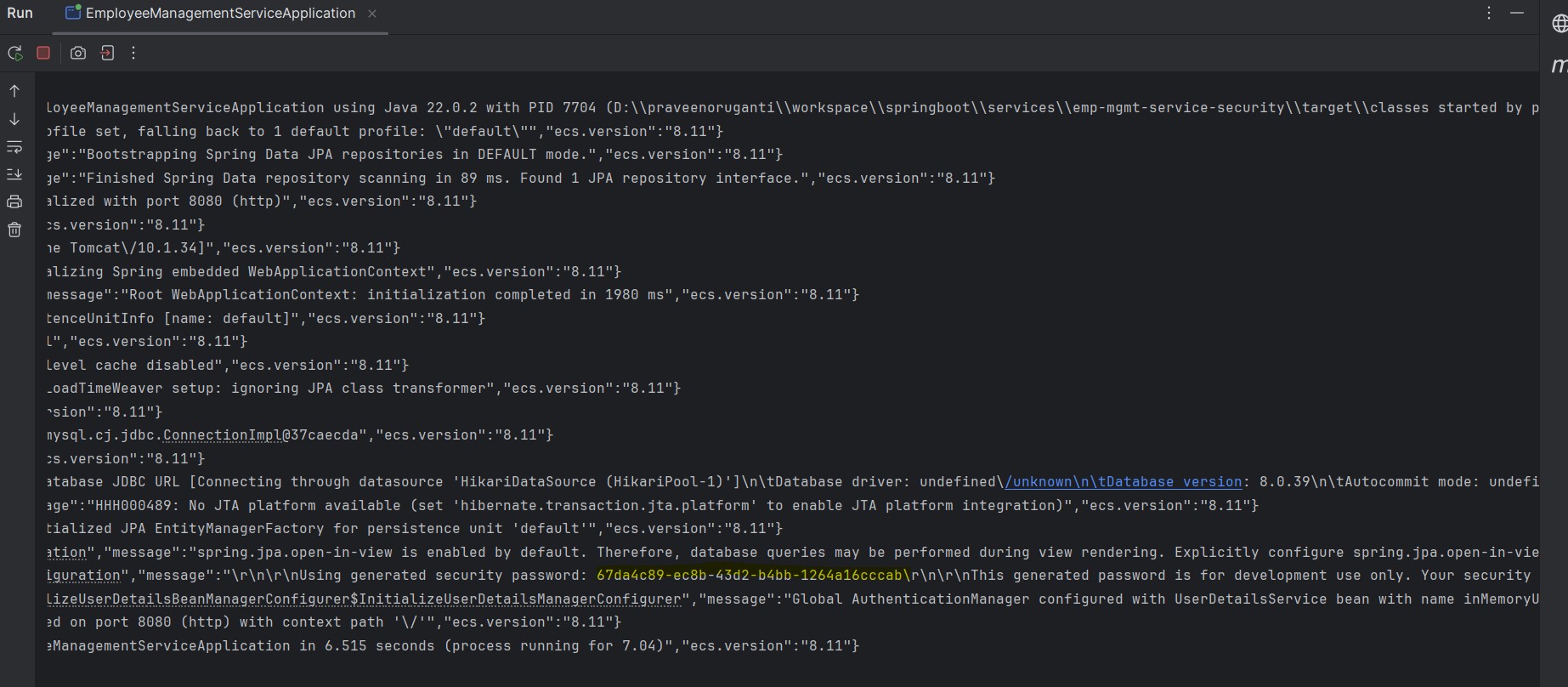
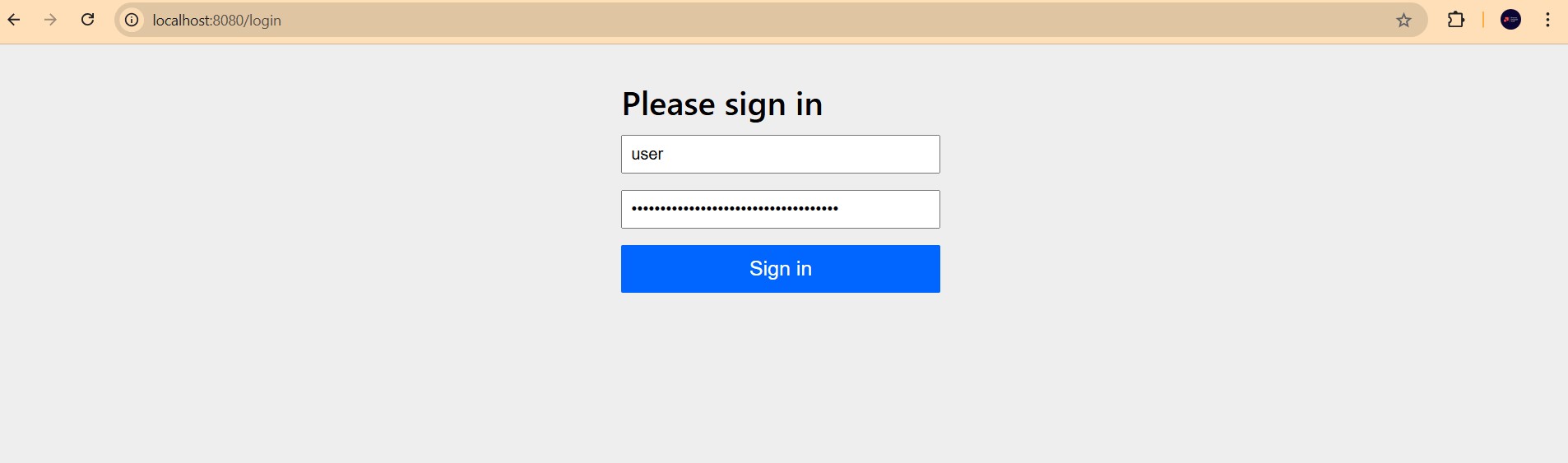
Let's use the username user and the generated password (e.g., 67da4c89-ec8b-43d2-b4bb-1264a16cccab) to log in.
Now we are able to consume the protected endpoint successfully.
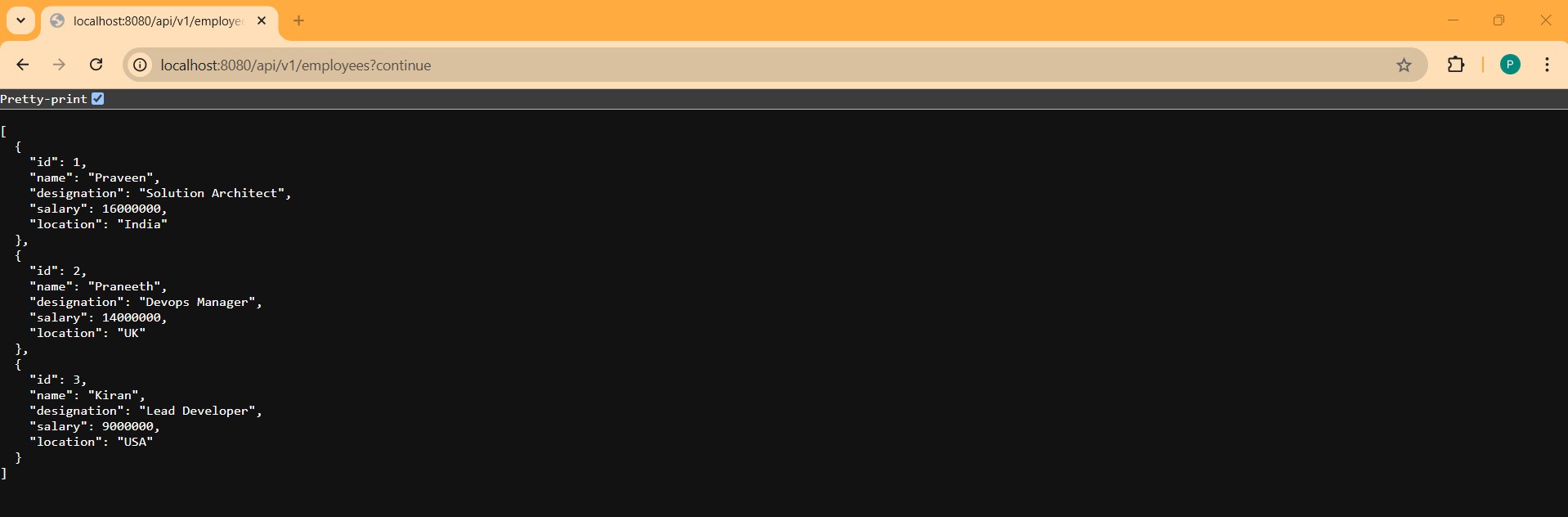
- Customized User and Password
Let's configure user and password in application.properties file.
spring:
 application:
  name: emp-mgmt-service
 security:
   user:
     name: praveen
     password: m13~Tj,finAZ
- Access the Protected URL
Let's access the URL http://localhost:8080/api/v1/employees with above customized credentials to login.
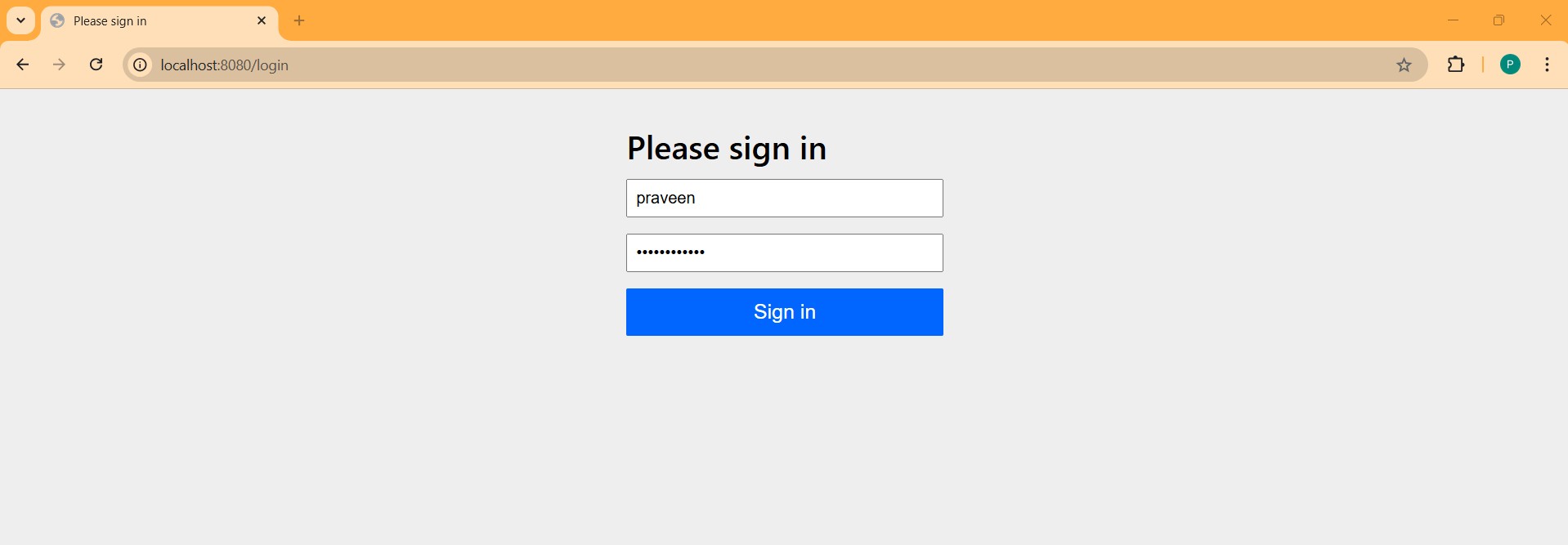
Now we are able to consume the protected endpoint successfully.
- Logging Out
To log out, navigate to the following URL http://localhost:8080/logout
Click the Log Out button on the screen.

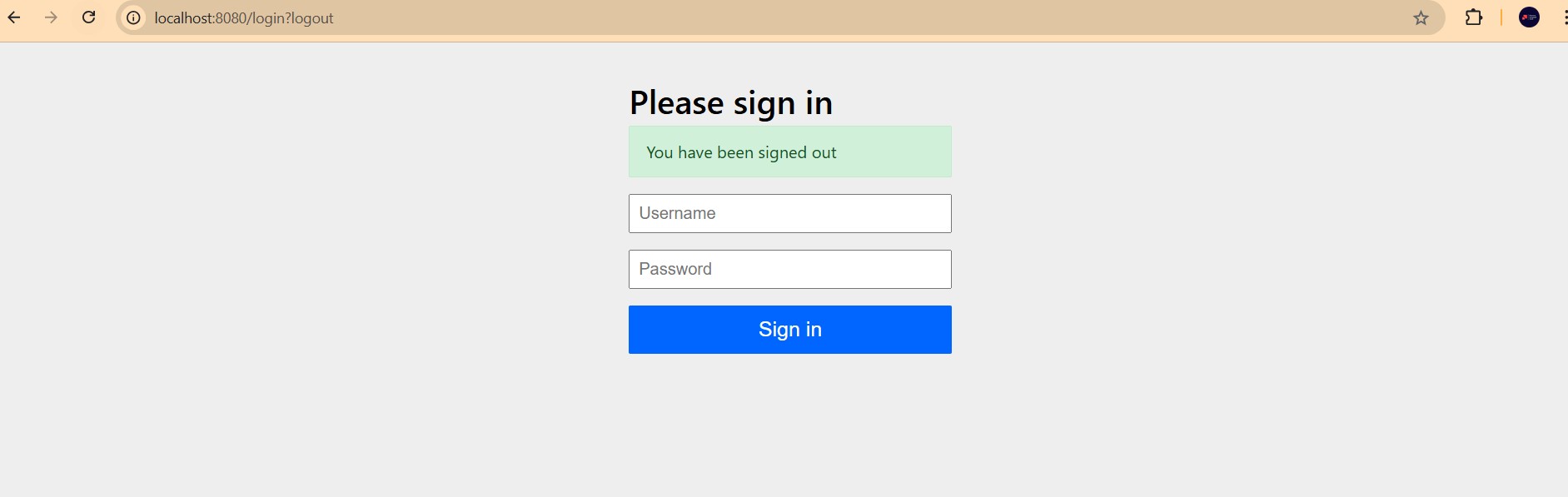
Once logged out, you'll be redirected to the login page.